Documentation
This documentation is a work in progress. Check out videos on the ultraPacer YouTube Channel. Feature requests or issue/bug reports? Suggest, vote, and comment in the Feedback Hub.
Anything else? Contact me directly.
This guide will step you through creating and modifying pace Plans.
Getting Started
Make sure you’re viewing the Course for which you intend to make a Plan.
Log in first if you want to save this Plan for later viewing/modifying.
Create a Plan
If not already there, switch to Planning mode using the Mode dropdown at the top of the page. Then click the Add new plan button (highlighted in green when no plan is selected), or select New plan from the Plan dropdown menu.
The plan creation process uses a multi-step flow:
- Athlete - Select athlete and view/edit athlete settings
- Plan - Select pacing method and target, configure date/time, cutoffs, and delays
- Plan settings - Advanced pacing configuration
- Pacing - Set default or custom pacing strategy
- Hill effort - Customize intensity on grades
- Heat factor - Configure heat model (optional)
- Summary - Enter plan name and description
Users must sign in for all features to be available.
Plan Creation Flow
Athlete Page
Athlete Selection
Select which athlete this plan is for. By default, plans are created for yourself (“me”), but you can create plans for any of your coached athletes.
Athlete settings
View and optionally edit the athlete’s settings that affect pacing calculations:
- Altitude: How the athlete handles altitude changes
- Downhill skill: How the athlete handles technical descents
- Dark skill: How the athlete handles running in darkness
Click “(edit)” to modify these settings.
Plan Page
Pacing Target
Select the method for calculating pacing. Options are:
- Elapsed time computes splits to complete the event at the specified total/elapsed time. For example, a 24-hour finish.
- Average pace computes splits to make an average overall pace for the race. For example, an average of a 10:00 minute mile.
- Normalized pace computes splits for an average pace normalized for all of the factors implemented (grade, altitude, heat, terrain, darkness). For example, if you can run an 8:30 pace for 5 hours under flat/smooth/perfect conditions, see what a normalized pace of 8:30 does for your mouintain 50k time.
After selecting the method, enter the target value in the Elapsed time, Average pace, or Normalized pace field as appropriate.
Event Start Date/Time/Timezone
Date and time fields are optional but recommended. By entering the start time, Waypoint arrivals can be shown in time of day instead of just as elapsed time. Additionally they add value to the pacing algorithm. Date and time are required for the heat model and the twilight/darkness model to work since they utilize sunrise and sunset times. An option to choose between Course start vs custom start times will appear when creating a Plan for a Course or Race where a time has already been specified. By selecting the custom start option you may specify a different date/time.
Use Cutoffs
When a course or race has cutoff times specified, for the finish or for intermediate waypoints/aid stations, an option will appear to enable “Use Cutoffs”. Enabling this option will force the pacing plan to come within cutoffs.
If enabled, you may specify the margin of time to maintain underneath cutoff times. Arrivals at intermediate waypoints will be ahead by this margin, or by the aid station delay time, whichever is greater. The margin must leave some time to reach each cutoff after the delays at the waypoints before it, so longer delays lower the largest margin you can set.
Waypoints with arrival times up against the cutoffs will be highlighted yellow on the Plan view. Waypoints with arrival times after cutoffs will be highlighted red.
Aid Station Delays
Enter the typical dwell time you plan to spend at each Aid Station. This time also applies to Waypoints designated as “Water Sources”.
Other Waypoint types such as “Junctions” or “Landmarks” do not include the typical delay. Unique delays for specific waypoints may be customized in the plan view (see “Editing Individual Waypoint Delays and Notes” below), for example, if you are planning a short catnap somewhere or more involved crewing/resupply in certain locations. Times are entered in mm:ss, or in hh:mm for courses exceeding 250 km in distance.
Note: This setting does not affect your Pacing Target.
Strategy Page
Apply intentional changes in level of effort throughout a run. This is pacing strategy, going out faster expecting to slow throughout, or starting conservatively and negative splitting. Or maybe a “smell the barn” kick at the end.
Default Strategy
Leave “Customize pacing strategy” deselected to use the default stragey, which will automatically apply a linear degradation in speed througout the course.
Customized Strategy (Basic)
A value of 10% would mean you begin the race 10% faster than you finish. Negative value for negative split.
Customized Strategy (Advanced)
By enabling the “advanced” model, you can add incremental changes through your race. For the example 50-mile race below, holding the pace steady for the first 20 miles, then fatiguing 5% over the next 25 miles, then a finishing kick for the last 5 miles:
Heat factor page
Enable and apply the heat model to your pacing plan.
The Baseline factor is always present even at night; a value of 10% would mean your normalized pace is 10% faster due to heat throughout the event.
The Maximum factor activates 1/2 hour after local sunrise and returns to Baseline 1 hour after sunset, peaking at the maximum value specified.
Summary Page
Plan Name
Type in a name (required) for the Plan (you can create multiple Plans). For example you might have an “A Goal” and “B Goal” Plan.
Description
Optionally, add notes about this Plan for later reference.
Completing Plan Creation
After filling out all pages of the flow, click the Go! button to create your plan. The system will calculate your pacing splits based on all the parameters you’ve configured.
Finding a saved Plan
You can later find any Plan you have created and saved in ultraPacer. When you create a Plan for a Course, the Course is added to the My Courses page. If you go to that Course, all the Plans you have created for the Course are listed in the Plan dropdown menu at the top.
Modifying a Plan
You can later modify or delete any of the settings above for Plans you own by selecting the plan in the Course page, then selecting “Edit plan” from the Actions menu at the top.
Copying a Plan
Once you are logged in, you can copy any saved plan to your account:
- While viewing the plan on the course page, open the Actions menu at the top
- Select “Copy plan”
Alternatively, from the Dashboard:
- Navigate to the Runs tab
- Find the plan you want to copy and open its Actions menu
- Select “Copy plan”
The plan creation form opens pre-populated with all settings from the original plan. The name is automatically prefixed with “Copy of” to distinguish it from the original. You can change the name, pacing target, strategy, or any other settings before saving.
This is useful for:
- Creating “A Goal” and “B Goal” plans from the same starting point
- Experimenting with different pacing strategies without losing your original plan
- Making a plan for a different athlete based on an existing plan
Editing Individual Waypoint Delays and Notes
While viewing your plan on the course page, you can customize delays and add notes for individual waypoints:
- Find the waypoint in the Schedule table
- Click the small edit button (pencil icon) next to the waypoint name, or click “Edit notes/delay” button when the waypoint is selected
- In the dialog that opens, you can:
- Delay: Adjust the time you plan to spend at this specific waypoint (overrides the typical delay for this waypoint only)
- Notes (or Athlete Notes for coaches): Add notes for this specific waypoint that apply to all plans for this course
- Plan Notes: Add notes for this specific waypoint that are specific to this plan only
- Click OK to save your changes
Note: Changes are automatically saved to the server when you click OK. There’s no need for a separate “Save” action.
Note: A delay doesn’t apply at the start or the finish, so those waypoints show no Delay column in the Schedule table and no Delay field in the dialog. On a looped course this only affects the first loop’s start and the last loop’s finish; the same site is treated normally on every other loop.
Notes support markdown formatting for rich text (bold, italic, lists, links, etc.), though not images.
This is useful for:
- Planning longer stops at specific aid stations
- Adding reminders about gear changes, crew access, or drop bags
- Noting special considerations for particular waypoints
- Documenting pacing strategy adjustments at key points
What's new?
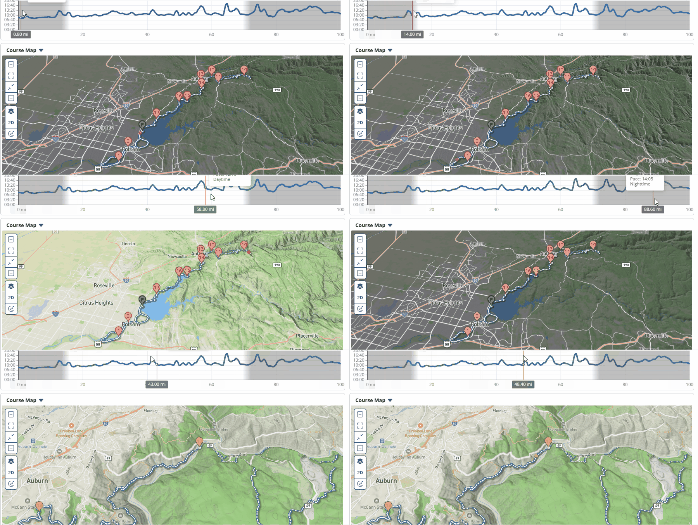
Dynamic sun shading!
The map now adjusts lighting based on the sun’s position throughout your run. Watch shadows shift and terrain illuminate realistically as the time of day changes, giving you a better sense of conditions on course. | Plus/pro feature