Documentation
This documentation is a work in progress. Check out videos on the ultraPacer YouTube Channel. Feature requests or issue/bug reports? Suggest, vote, and comment in the Feedback Hub.
Anything else? Contact me directly.
Manage your ultraPacer membership, billing, and subscription settings.
Accessing Membership Settings
Your membership options are available on the Settings Page in the Membership card.
Managing Your Membership
Viewing Membership Options
From the Settings page, click the Membership Options button to:
- View available membership plans
- Compare features between Plus and Pro tiers
- Upgrade or change your membership level
Billing & Cancellation
If you have an active Stripe subscription, you’ll see a Billing & Cancellation button that will take you to the Stripe Customer Portal where you can:
- View billing history - See all past invoices and payments
- Download invoices - Print or save invoices for your records
- Update payment method - Change credit cards or payment details
- Cancel subscription - End your membership (takes effect at the end of your billing period)
Printing/Downloading Invoices
To access your invoices:
- Go to the Settings Page
- In the Membership section, click Billing & Cancellation
- You’ll be redirected to the Stripe Customer Portal
- Click on any invoice in your billing history
- Use the “Download” button to save the invoice as a PDF
Cancelling Your Membership
To cancel your membership:
- Navigate to Settings Page
- Click Billing & Cancellation in the Membership section
- In the Stripe Customer Portal, find your active subscription
- Click Cancel subscription
- Follow the prompts to confirm cancellation
Important Notes:
- Your membership will remain active until the end of your current billing period
- You’ll retain access to member features until the subscription expires
- You can reactivate your membership at any time
Membership Status
Your current membership status is displayed at the top of the Membership card on the Settings page. This shows:
- Free - No active membership
- Member (Active) - Active paid membership
- Member (Cancel pending) - Canceled but still active until period end
Support
If you have questions about your membership, billing, or need assistance with cancellation, contact support directly.
What's new?
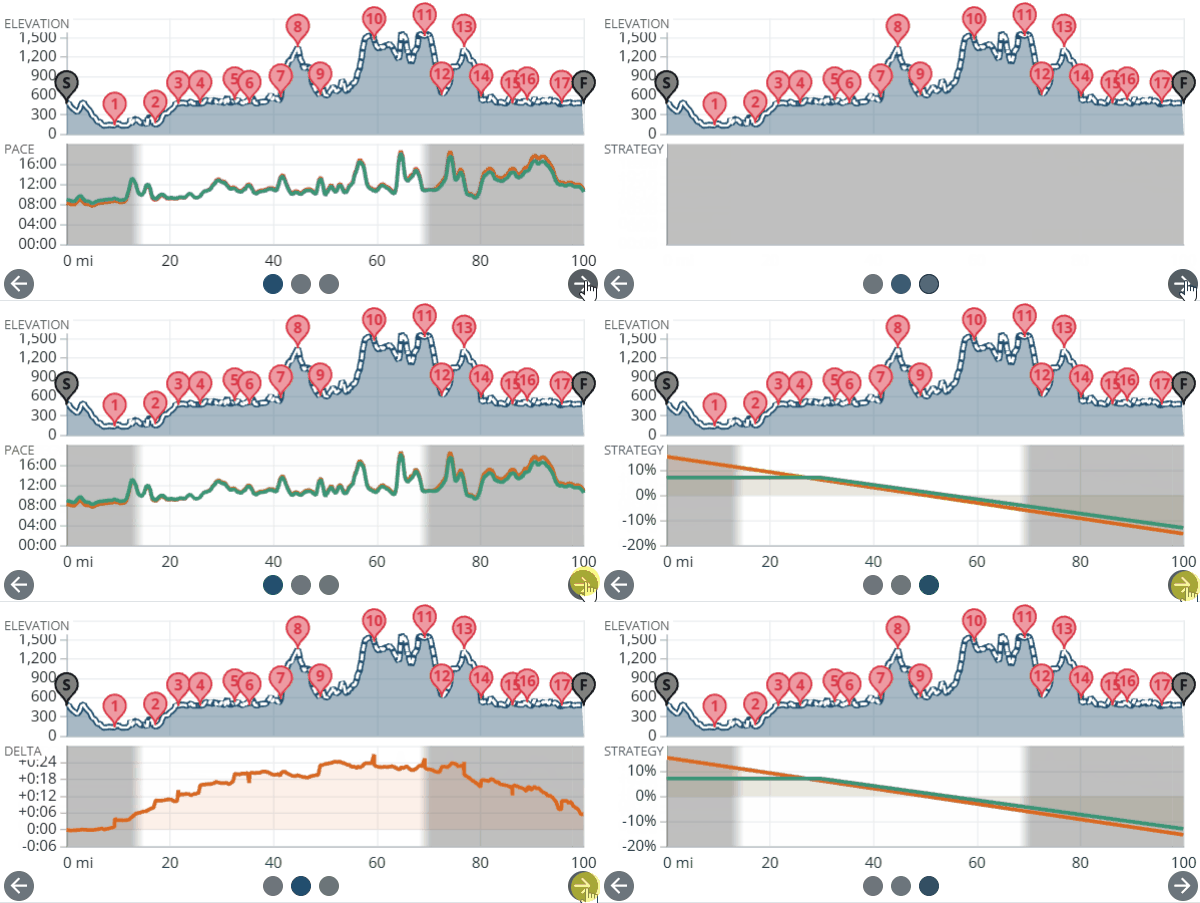
More charts under the course profile!
The chart below the elevation profile now flips between pace, ahead/behind, pacing strategy and heat. Where you have a recorded activity alongside your plan, the pace chart draws both so you can see where the two diverged.